電子郵件範本
Logto 提供不同的範本來自訂電子郵件內容,這些範本根據其使用情境進行分類。
強烈建議在不同情境中使用不同的範本。否則,使用者可能會收到與當前操作不符的電子郵件內容,造成混淆。如果有未配置的範本缺失,可能會導致依賴該範本的流程錯誤,影響業務的正常發展。
電子郵件範本自訂選項
Logto 提供三種不同的方法來管理電子郵件範本:
-
在 Logto 中自訂範本
- 連接器:
- 功能:
- ✅ 靈活地將多樣變數插入範本
- ✅ 通過 Management API 創建自訂多語言範本
- ✅ 在 Logto 中完整編輯範本
-
在提供者平台中自訂範本
- 連接器:
- 功能:
- ✅ 將變數傳遞給提供者平台
- ✅ 將
locale參數傳遞給提供者平台以進行本地化 - ✅ 在提供者的儀表板中完整編輯範本(使用 Logto Management API)
-
預建範本(不可自訂)
- 連接器:
- 功能:
- ✅ 原生變數支援
- ❌ 多語言範本 (即將推出)
- ❌ 範本 / UI 修改已禁用
電子郵件範本類型
| usageType | 情境 | 變數 |
|---|---|---|
| SignIn | 使用者使用其電子郵件登入,並通過輸入驗證碼而非密碼進行驗證。 | code: string application: ApplicationInfoorganization?: OrganizationInfo |
| Register | 使用者使用其電子郵件創建帳戶,並通過輸入 Logto 發送到其電子郵件的驗證碼進行驗證。 | code: string application: ApplicationInfoorganization?: OrganizationInfo |
| ForgotPassword | 如果使用者在登入時忘記密碼,他們可以選擇先使用電子郵件驗證其身分以重設密碼。 | code: string application: ApplicationInfoorganization?: OrganizationInfo |
| Generic | 此範本可作為各種情境的通用備用選項,包括測試連接器配置、登入後驗證或連結電子郵件等。 | code: string |
| OrganizationInvitation | 使用此範本向使用者發送邀請連結以加入組織。 | link: string organization: OrganizationInfoinviter?: UserInfo |
| UserPermissionValidation | 在應用程式使用過程中,可能會有一些高風險操作或風險較高的操作需要額外的使用者驗證,例如銀行轉帳、刪除使用中的資源和取消會員資格。UserPermissionValidation 範本可用於定義使用者在這些情況下收到的電子郵件驗證碼的內容。 | code: string user: UserInfoapplication?: ApplicationInfo |
| BindNewIdentifier | 當使用者修改其個人資料時,他們可能會將電子郵件地址綁定到其當前帳戶。在這種情況下,BindNewIdentifier 範本可用於自訂驗證電子郵件的內容。 | code: string user: UserInfoapplication?: ApplicationInfo |
電子郵件範本變數
Code
使用者需要輸入的驗證碼以完成驗證過程。適用於 SignIn、Register、ForgotPassword、Generic、UserPermissionValidation 和 BindNewIdentifier 範本。
- 驗證碼在 10 分鐘內過期。我們目前不支援自訂驗證碼的過期時間。
- 範本中需要保留一個
{{code}}佔位符。發送驗證碼時,隨機生成的代碼將替換此佔位符,然後我們將電子郵件發送給使用者。
ApplicationInfo
使用者正在互動的客戶端應用程式的公共資訊。適用於 SignIn、Register、ForgotPassword、UserPermissionValidation 和 BindNewIdentifier 範本。
type ApplicationInfo = {
  id: string;
  name: string;
  displayName?: string;
  branding?: {
    logoUrl?: string;
    darkLogoUrl?: string;
    favicon?: string;
    darkFavicon?: string;
  };
};
- 所有嵌套的應用程式資訊欄位都可以通過點符號在範本中訪問。例如,
{{application.name}}將被替換為配置中的實際應用程式名稱。 - 如果未提供根
application變數,則 Handlebars 佔位符將被忽略且不會被替換。 - 如果提供的
application物件不包含所需欄位或值為未定義,則 Handlebars 佔位符將被替換為空字串。例如,{{application.foo.bar}}將被替換為 ``。
OrganizationInfo
使用者正在互動的組織的公共資訊。
type OrganizationInfo = {
  id: string;
  name: string;
  branding?: {
    logoUrl?: string;
    darkLogoUrl?: string;
    favicon?: string;
    darkFavicon?: string;
  };
};
- 對於
SignIn、Register和ForgotPassword範本,organization變數是可選的。僅在授權請求中存在organization_id參數時可用。詳情請參閱組織專屬品牌設定。 - 對於
OrganizationInvitation範本,organization變數是必需的。
UserInfo
發送電子郵件的使用者的公共資訊。適用於 UserPermissionValidation、BindNewIdentifier 和 OrganizationInvitation 範本。
type UserInfo = {
  id: string;
  name?: string;
  username?: string;
  primaryEmail?: string;
  primaryPhone?: string;
  avatar?: string;
  profile?: Profile;
};
- 有關
Profile類型的更多詳細資訊,請檢查個人資料。 user變數是UserPermissionValidation和BindNewIdentifier範本的必需項。inviter變數是OrganizationInvitation範本的可選項。僅在組織邀請請求中提供inviterId時可用。
電子郵件範本範例
你可以使用提供的電子郵件範本代碼範例作為自訂 UI 的起點,創建類似以下的使用者介面:
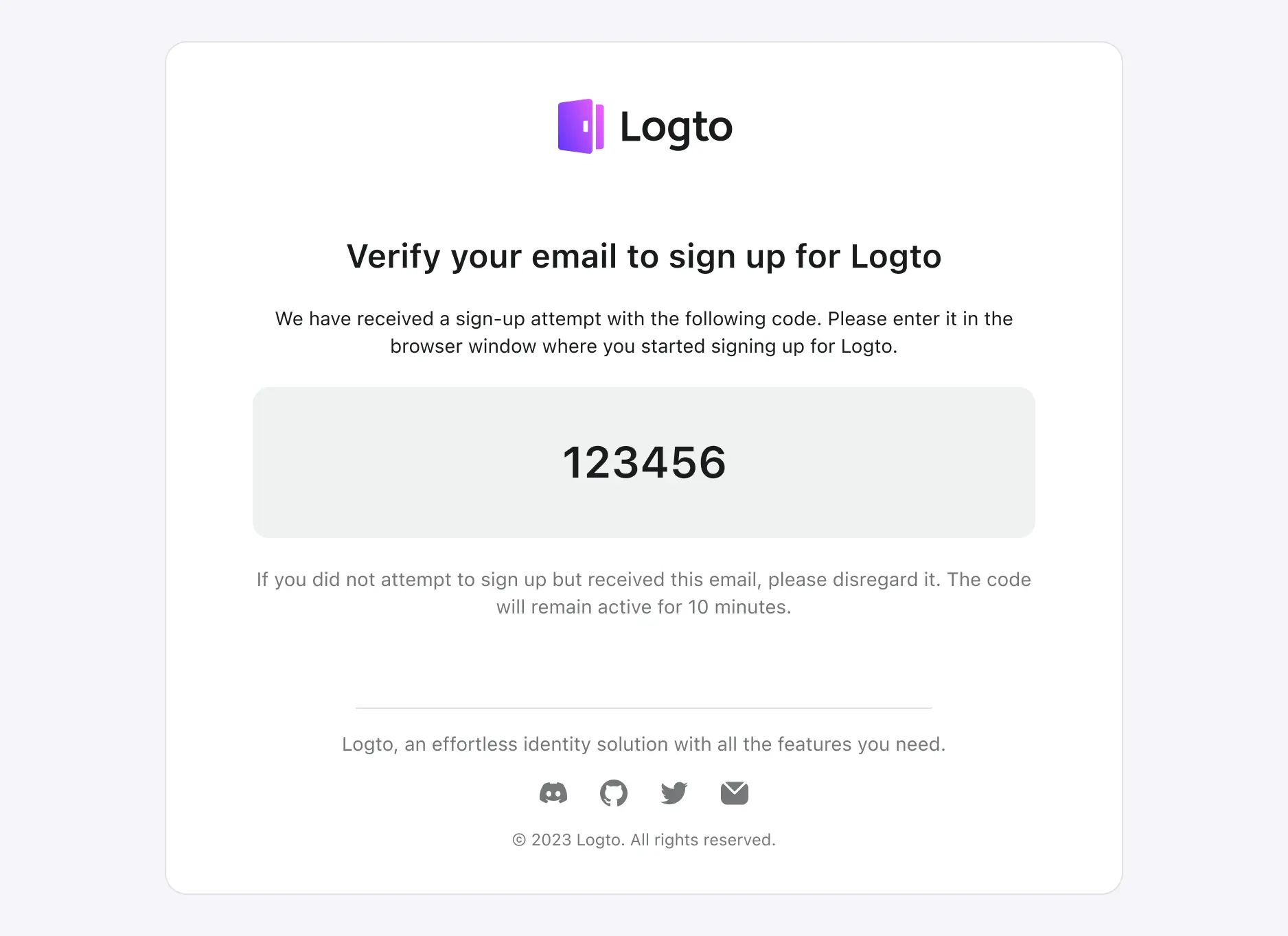
由於 Logto 在不同情境中使用的電子郵件範本非常相似,唯一的區別在於當前情境和操作的描述。
我們不在此詳細顯示所有範本的 HTML 代碼,而是僅以 登入 情境為例。其他情境,如註冊和忘記密碼,與以下範例非常相似。
使用者可以參考此範本並根據實際情況進行調整。
<!doctype html>
<html lang="en">
  <head>
    <meta charset="UTF-8" />
    <meta name="viewport" content="width=device-width, initial-scale=1.0" />
    <title>Verify your email to sign in</title>
    <style>
      .auth-service-by:hover .mini-logo {
        display: none !important;
      }
      .auth-service-by:hover .mini-logo-color {
        display: block !important;
      }
      body {
        font-family:
          'SF Pro Text',
          -apple-system,
          system-ui,
          BlinkMacSystemFont,
          'Segoe UI',
          Roboto,
          Arial,
          sans-serif;
        -webkit-font-smoothing: antialiased;
        -moz-osx-font-smoothing: grayscale;
        font-smooth: always;
        background-color: #fff;
        color: #191c1d;
        max-width: 640px;
        padding: 32px 0;
        font-size: 14px;
        font-weight: 400;
        line-height: 20px;
      }
      h1 {
        font-size: 24px;
        font-weight: 700;
        line-height: 32px;
        margin-top: 32px;
      }
      .verification-code {
        margin: 20px 0;
        background: #eff1f1;
        border-radius: 12px;
        padding: 36px;
        font-size: 32px;
        font-weight: 600;
        line-height: 40px;
      }
      .footer {
        text-align: center;
        color: #a9acac;
        margin-top: 48px;
      }
    </style>
  </head>
  <body>
    <div style="max-width: 698px; border-radius: 16px; border: 1px solid #E0E3E3;">
      <div style="padding: 0 24px;">
        <center>
          <img src="{{logoUrl}}" alt="Logo" width="auto" height="40" />
          <h1>Verify your email to sign in</h1>
          <p>
            We have received a sign in attempt with the following code. Please enter it in the page
            you opened to complete the sign in process.
          </p>
          <div class="verification-code">000000</div>
          <p style="color: #747778;">
            If you did not attempt to sign in but received this email, please ignore it. The code
            will remain active for 10 minutes.
          </p>
          <hr style="margin: 64px 0 24px; max-width: 420px;" />
          <p style="color: #747778; margin: 16px 0 0;">{{companyInfo}}</p>
        </center>
      </div>
    </div>
    <div class="footer">
      <hr />
      <p style="font-size: 14px; line-height: 20px; margin: 20px 0;">
        <a href="https://logto.io" style="color: #A9ACAC; text-decoration: underline;">Logto</a>:
        The better identity infrastructure for developers.
      </p>
      <table style="margin: 0 auto; width: auto; border-spacing: 0;">
        <tbody>
          <tr>
            <td style="vertical-align: middle;">
              <a href="{{discordServerUrl}}" style="display: block; margin: 0 12px;">
                <img src="{{discordLogoUrl}}" style="width: 20px;" />
              </a>
            </td>
            <td style="vertical-align: middle;">
              <a href="{{githubUrl}}" style="display: block; margin: 0 12px;">
                <img src="{{githubLogoUrl}}" style="width: 20px;" />
              </a>
            </td>
            <td style="vertical-align: middle;">
              <a href="{{twitterUrl}}" style="display: block; margin: 0 12px;">
                <img src="{{twitterLogoUrl}}" style="width: 20px;" />
              </a>
            </td>
            <td style="vertical-align: middle;">
              <a href="{{mailToUrl}}" style="display: block; margin: 0 12px;">
                <img src="{{emailIconUrl}}" style="width: 20px;" />
              </a>
            </td>
          </tr>
        </tbody>
      </table>
      <p style="font-size: 12px; line-height: 16px;">
        © Silverhand, Inc., 2810 North Church Street, Wilmington, DE 19802
      </p>
      <p style="color: #A9ACAC; font-size: 12px; line-height: 16px;">
        有問題或需要幫助?
        <a href="{{mailToUrl}}" style="color: #A9ACAC; text-decoration: underline;">聯絡我們</a>
      </p>
    </div>
  </body>
</html>
然後你可以將上述 HTML 代碼轉義並將其添加到配置中的連接器「Template」欄位,如下所示(假設使用 SendGrid 連接器):
{
  "subject": "<sign-in-template-subject>",
  "content": "<table cellpadding=\"0\" cellspacing=\"0\" ...",
  "usageType": "SignIn",
  "type": "text/html"
}
電子郵件範本本地化
不同語言的自訂電子郵件範本
Logto 支援通過 Management API 為不同語言創建自訂電子郵件範本。你可以為不同語言和範本類型創建自訂電子郵件範本,以為使用者提供本地化體驗。
type EmailTemplate = {
  languageTag: string;
  templateType: TemplateType;
  details: {
    subject: string;
    content: string;
    contentType?: 'text/html' | 'text/plain';
    replyTo?: string;
    sendFrom?: string;
  };
};
| 欄位 | 描述 |
|---|---|
| subject | 電子郵件的主題範本。 |
| content | 電子郵件的內容範本。 |
| contentType | 某些電子郵件提供者可能會根據內容類型不同地呈現電子郵件範本。(例如 Sendgrid、Mailgun)。使用此欄位指定電子郵件範本的內容類型。 |
| replyTo | 將接收電子郵件回覆的電子郵件地址。請檢查你的電子郵件提供者以查看此欄位是否受支援。 |
| sendFrom | 電子郵件發件人的名稱別名。請檢查你的電子郵件提供者以查看此欄位是否受支援。 |
一旦創建了電子郵件範本,Logto 將根據使用者的語言偏好自動選擇適當的電子郵件範本,使用以下優先順序:
- 對於客戶端 使用體驗 API 和 使用者帳戶 API,語言偏好由請求中的
Accept-Language標頭決定。對於 Management API(如 組織邀請),你可以在請求正文的messagePayload欄位中包含locale參數來指定語言偏好。 - 當檢測到語言偏好時,Logto 會使用
languageTag和templateType欄位查找匹配的自訂電子郵件範本。如果指定語言和範本類型存在範本,Logto 將使用該範本來呈現電子郵件。 - 如果未檢測到語言偏好,或者檢測到的語言和範本類型沒有自訂範本,Logto 將使用在登入體驗中配置的租戶默認語言。配置詳情請檢查本地化語言。
- 如果未找到匹配的範本,Logto 將使用連接器配置中定義的默認電子郵件範本。
支援的電子郵件連接器:
提供者端電子郵件範本本地化
對於使用由提供者管理的電子郵件範本的電子郵件連接器的開發者:
使用者偏好的語言將通過範本負載中的 locale 參數傳遞給提供者。你可以在提供者的控制台中為不同語言創建多個範本,並使用 locale 參數指定語言偏好。
常見問題
如果範本未在 Logto 中配置,如何使用第三方電子郵件範本服務?
你可以向自己的網路服務添加一個新端點來發送電子郵件,然後使用 Logto HTTP 電子郵件連接器 調用你維護的端點。
這允許你在自己的伺服器上處理電子郵件範本邏輯。
是否有辦法使用 Logto 電子郵件向我們的使用者發送自訂的「歡迎電子郵件」?
我們提供 Webhook 功能。你可以實現自己的 API 端點來接收 Logto Webhook 發送的 User.Created 事件,並在 webhook 處理程序中添加邏輯以發送自訂的歡迎電子郵件。
Logto 電子郵件連接器僅提供與驗證流程相關的事件的電子郵件通知。歡迎電子郵件是一項業務需求,電子郵件連接器不原生支援此功能,但可以通過 Webhook 實現。
相關資源
最大化驗證電子郵件的傳遞以保證使用者訪問